

The short decision
Use Windows Sandbox for a temporary clean Windows desktop. Use WSL2 for a Linux command-line and development environment closely integrated with Windows. Use a full VM when you need a persistent machine definition, another operating system, controlled virtual hardware, snapshots, migration or an independent recovery boundary.
The boundaries side by side
Similar foundations do not make them interchangeable.
| Decision | Windows Sandbox | WSL2 | Full virtual machine |
|---|---|---|---|
| Primary job | Run or inspect something in a disposable Windows desktop | Run Linux tools and distributions beside Windows | Operate a complete, durable computer |
| State | Closing the sandbox discards installed software, files and state | Distribution files persist in its managed virtual disk | Disks, firmware state and machine configuration persist |
| Kernel | A separate Windows kernel under Microsoft’s hypervisor | A Microsoft-maintained Linux kernel in a managed VM | The kernel installed by the guest owner |
| Guest choice | The Windows environment supplied from the host | Supported Linux distributions | Windows, Linux and other supported architectures or systems |
| Hardware model | Intentionally limited and managed by Windows | Managed for the WSL workflow | Explicit CPU, memory, firmware, disks, networks, display and devices |
| Best recovery model | Close it and start clean | Export, import and back up the distribution data | Independent backup plus tested machine restoration |
Windows Sandbox
Disposable does not mean disconnected.
Windows Sandbox is included with supported Pro, Enterprise and Education editions; Microsoft does not currently support it on Windows Home. It uses a dynamically generated Windows image and a separate kernel, while sharing selected host resources for efficiency.
Networking is enabled by default through the Hyper-V default switch. Clipboard and other redirection can also cross the boundary. A mapped host folder—especially a writable one—lets software in the sandbox reach real host data. For an unknown application, disable networking where practical, map only the required folder, make it read-only and keep unrelated credentials outside that path.
Choose Sandbox when
The test should leave nothing behind.
Open an installer, reproduce a clean Windows issue or inspect a file in a short-lived desktop. Do not choose it for a service or environment that must survive closing the window.
Choose WSL2 when
Linux belongs inside the Windows workflow.
Use Linux shells, packages, containers and development tools while retaining Windows files, Terminal and editor integration. It is not a general replacement for every full Linux VM topology.
Choose a VM when
The computer itself is the artifact.
Keep a defined OS, firmware, disks, networking and devices; run another architecture; preserve a legacy system; or move and recover the complete machine independently.
A safer experiment
Make the Sandbox boundary visible in its configuration.
A .wsb file can disable networking, disable clipboard redirection and expose one host folder read-only. This reduces convenient paths back to the host, but it does not turn unknown software into harmless software. Keep the host patched and avoid secrets in the shared folder.
<Configuration>
  <Networking>Disable</Networking>
  <ClipboardRedirection>Disable</ClipboardRedirection>
  <MappedFolders>
    <MappedFolder>
      <HostFolder>C:\SandboxDrop</HostFolder>
      <ReadOnly>true</ReadOnly>
    </MappedFolder>
  </MappedFolders>
</Configuration>
Where VMBook fits
Keep the Microsoft hypervisor instead of dismantling the Windows stack.
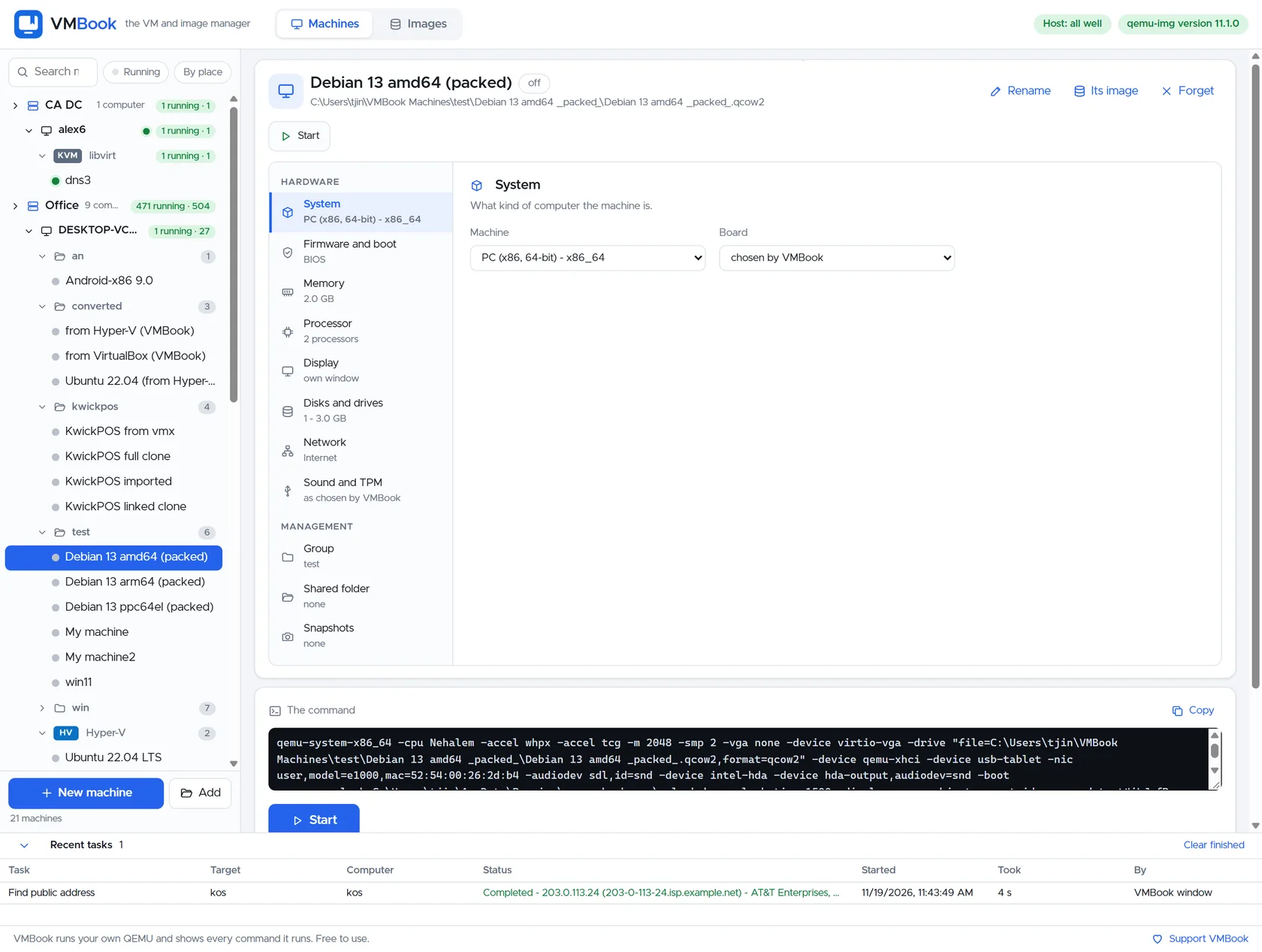
VMBook does not claim to manage Windows Sandbox as a provider. Its Windows value is elsewhere: QEMU can use WHPX while Hyper-V, WSL2, Memory Integrity and other Microsoft-hypervisor features remain enabled; native Hyper-V machines and WSL distributions keep their own provider identity; and full VM definitions expose the architecture, firmware, disks and networks that Sandbox intentionally hides.
This matters when one workstation needs all three boundaries. Use Sandbox for a disposable Windows test, WSL2 for integrated Linux development and VMBook for persistent QEMU or native-provider machines. Test the exact host build and workload: coexistence does not guarantee identical performance to a system where one hypervisor owns the machine exclusively.
Must it persist?
If no, Sandbox may be enough. If yes, choose WSL2 or a full VM.
Which kernel?
Integrated Linux points to WSL2; arbitrary guest control points to a VM.
Need devices?
Explicit firmware, controllers, networks or passthrough require a full VM path.
What must restore?
Choose a complete VM when the whole machine must be backed up and recovered.
Primary sources
Verify Windows behavior against Microsoft.
Microsoft: Windows Sandbox overviewMicrosoft: Windows Sandbox requirementsMicrosoft: Configure a .wsb fileMicrosoft: Comparing WSL versionsContinue
Follow the boundary you chose.
WSL2 or a full VM?VirtualBox, Hyper-V and WSL2 coexistenceHardware virtualization: VT-x and AMD-VVMBook for WindowsUse the smallest sufficient boundary
A disposable test, a Linux workspace and a durable machine are three different promises.
Keep the distinction visible, preserve the host’s security features and validate important workloads before relying on any virtualization path.